On the web and in documents, a bulleted or “unordered” list makes a piece of text easy to read and digest. The same goes for its cousin, the numbered or “ordered” list which you use for lists that only makes sense when read straight from first to last.
When writing for the web, using lists is a great way to communicate to your website visitors. Bullets make a page easy to scan and catch the eye. That increases the ease with which people can get information from a web page.
What a List Looks Like
HTML has lots of bullet styles including:
- “Disc”
- “Circle”
- “Square”
You can also define custom bullet styles with a bit of extra work:

Similarly, you can make “ordered” lists that use one of a few common numbering systems including:
- “Decimal”
- “Upper Roman”
- “Lower Roman”
- “Upper Alpha”
- “Lower Alpha”
Why Using Real Lists Matter
All of those examples use the correct HTML that defines a list. In most cases, you can count on lists to look the same across a website or document. Making lists with proper HTML means you get standardized indentation, list-item spacing, and more. Establishing and then maintaining consistent design on a website is a key to a good user experience.
Enter the “Fake” List
Sadly, I see “fake” lists all the time on the web and in emails. They’re not as attractive, more inconsistent, and usually harder to read.
Here’s a “fake” bulleted list:
• First bullet
• Second bullet. This one is really long and probably wraps and you’ll see why that’s important in a moment, but I just have to make sure that this line is really extra long to ensure that it wraps. There. I think that’s enough. Hopefully. Now. Stopping here for real this time.
• Third bullet
And here’s a “fake” ordered list:
1. First bullet
2. Second bullet. This one is really long and probably wraps and you’ll see why that’s important in a moment, but I just have to make sure that this line is really extra long to ensure that it wraps. There. I think that’s enough. Hopefully. Now. Stopping here for real this time.
3. Third bullet
Now for comparison, here’s a real unordered list with the same content:
- First bullet
- Second bullet. This one is really long and probably wraps and you’ll see why that’s important in a moment, but I just have to make sure that this line is really extra long to ensure that it wraps. There. I think that’s enough. Hopefully. Now. Stopping here for real this time.
- Third bullet
Can you see the difference? This time we get smaller unattractive indentations which don’t continue to the second or third lines. We also get smaller bullets (usually).
Depending on the the source and destination of text, you may get fake bullets when you paste into a text editor —including in WordPress if you use “Paste as Plain Text.” This often happens when copying text from a document editor like Microsoft Word or an email program like Microsoft Outlook.
How to Tell If You’re Using a Fake List
Luckily, this is easy to solve. First, figure out if you have fake bullets. There are two easy tests:
- Try to select the bullets or numbers with your cursor. (Really, scroll up and try it in the examples.) A proper HTML list doesn’t use selectable characters for the bullet or number.
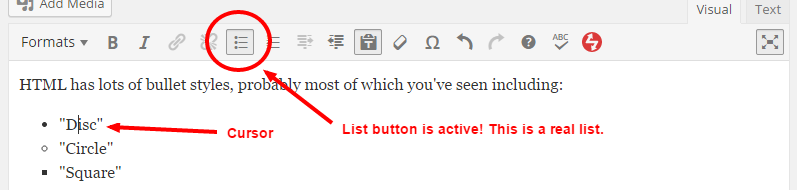
- In a text editor, put your cursor anywhere in a list and see if the appropriate list button “activates.” What that looks like depends on the program, but most are similar to how WordPress handles it.
(If you’re comfortable with HTML, you can also look at the source to determine the type of list.) ((Here’s the HTML for a fake list (specifics may vary):
https://gist.github.com/mrwweb/2d945ccd33b4105fff6b
Here’s the HTML for a real list:
https://gist.github.com/mrwweb/bd4ee108e346ff2db3ae
An ordered list would look the same except with <ol> instead of <ul>.))
Here are screenshots of how that second test looks:

How to Fix Fake Lists
So whenever you paste text with a list in it, make sure you’re using a real list! If not, it’s easy to fix:
- Delete the “bullets,” either the bullet character—”•”—or the numbering—”1.”
- Select the entire list and then hit the bulleted or numbered list button.
- You’re done!
- Or not! If you only get one bullet, you’ll need to delete your line-breaks and then hit return to make bullets for each line. This is a pretty common scenario, but you’ll get into a zen-like flow state and get it done in no time!
Once you start looking for fake lists, you’ll see them everywhere. (Sorry!) The difference may seem small, but I can tell you that it really jumps off the page if websites or documents mix the two styles.
Now go and make your lists awesome!